
Press 1 Button 2 Apps Automatically Open Side-by-Side
You MIGHT feel like the Tony Stark in Captain America: Civil War.

In a previous story, I mentioned that I was assessing the need for an iPad.
Well for those of you who read that story, I pulled the trigger and did it.
The iPad has already been a game changer.
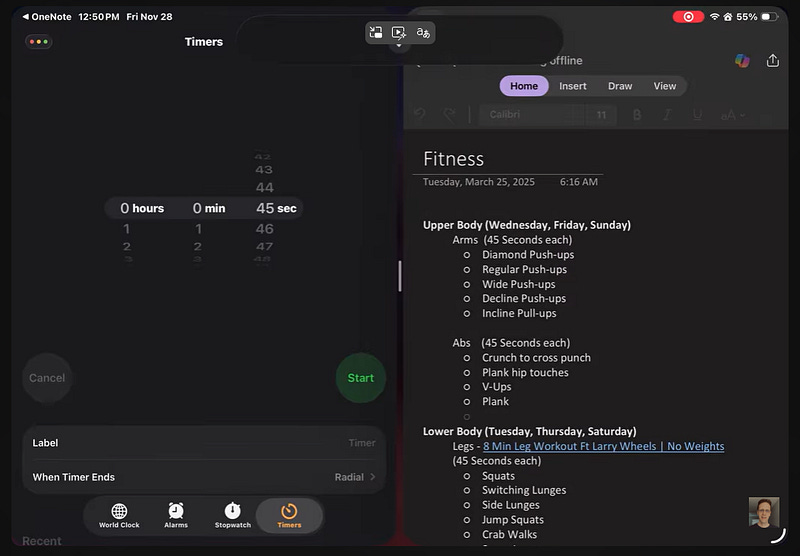
One of new strategies I already implemented was how I approach my leg workout routine.
Previously, I used my iPhone to switch between the Timer and OneNote while doing exercising.
When I got the iPad, I started splitting the screen with both apps launched side-by-side.
However through the power of the Shortcuts app, I found a way to automate the same process.
In this story, I’ll provide you the steps to do the same thing on your device.
It doesn’t matter what 2 apps you use on a regular basis; it WILL work.
On your iPad, iPhone or Mac open the Shortcuts app.
If you don’t have the Shortcuts app installed, click here to download and install it.
At the top of the screen click on the + sign.

Within the Search Actions box, enter Stage.
Tap on Set Stage Manager.
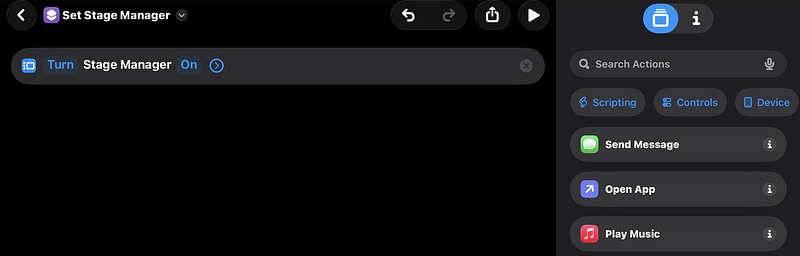
Tap on Open App.
Tap on App and select the first App.
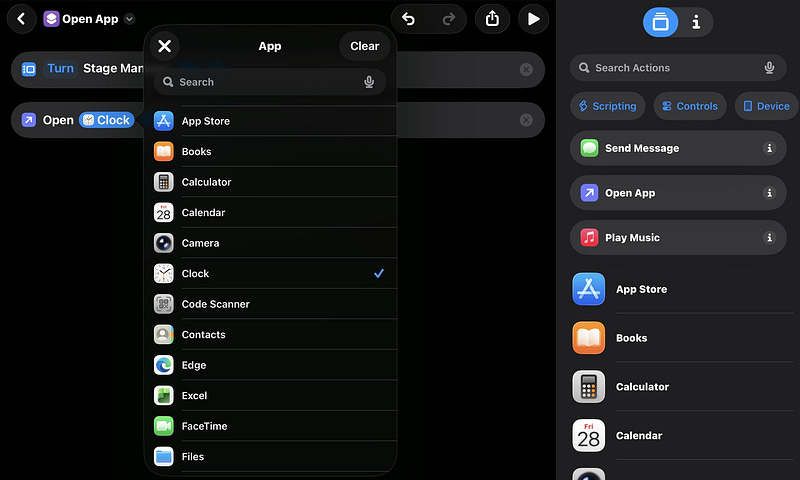
Tap on Open App again and select the second App.
Under Search Actions box again, enter split and select Split Screen Apps
Select the First app you already selected to Open.
Select the second app you already selected to Open.
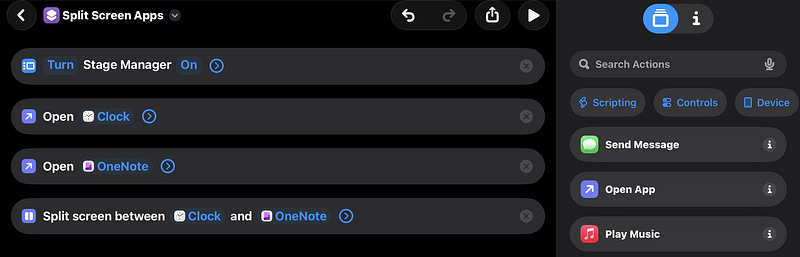
Tap on the Name of the Shortcut and rename it.
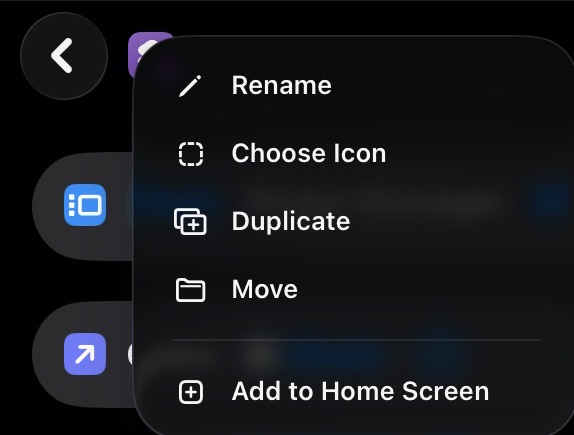
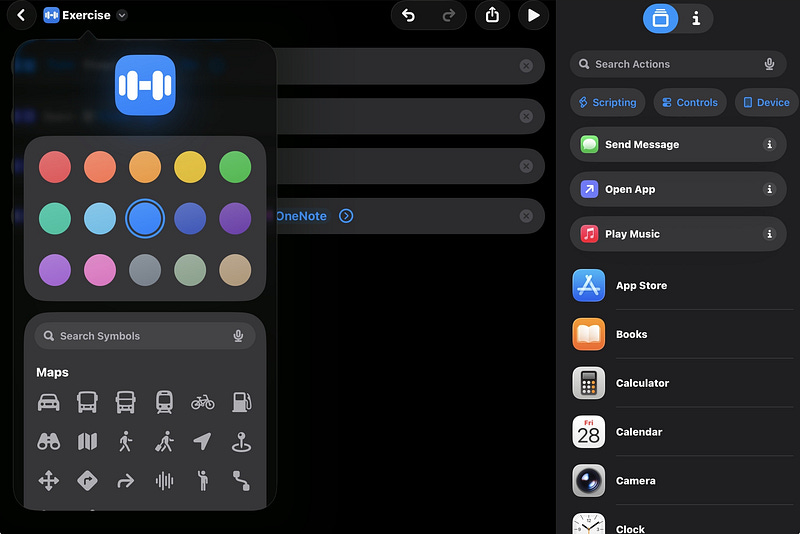
Tap on the icon of the picture to change the icon and the color.
IF you want to add the shortcut to Control Center, swipe from the top-right corner of your device.
Press and hold anywhere on the screen.
Tap on Add a Control.
Scroll down or search for Run Shortcut.
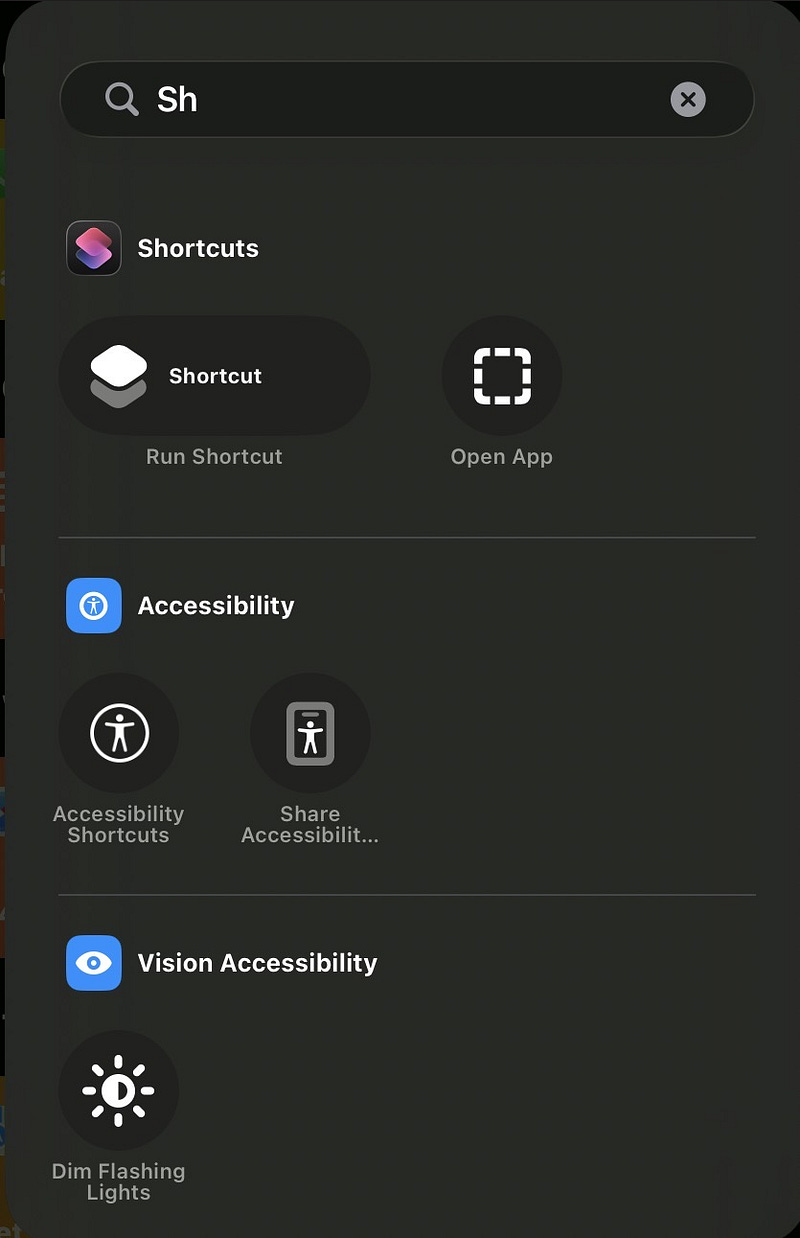
Tap on the control.
A screen will appear prompting you to choose the Shortcut.
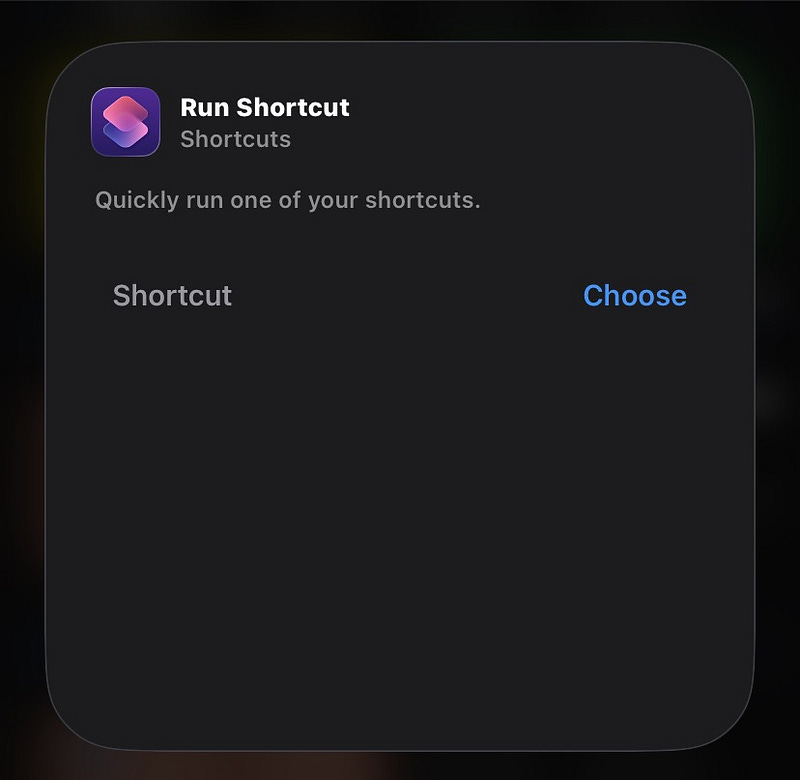
Click on Choose.
Click on My Shortcuts.
Select the Shortcut you just created.
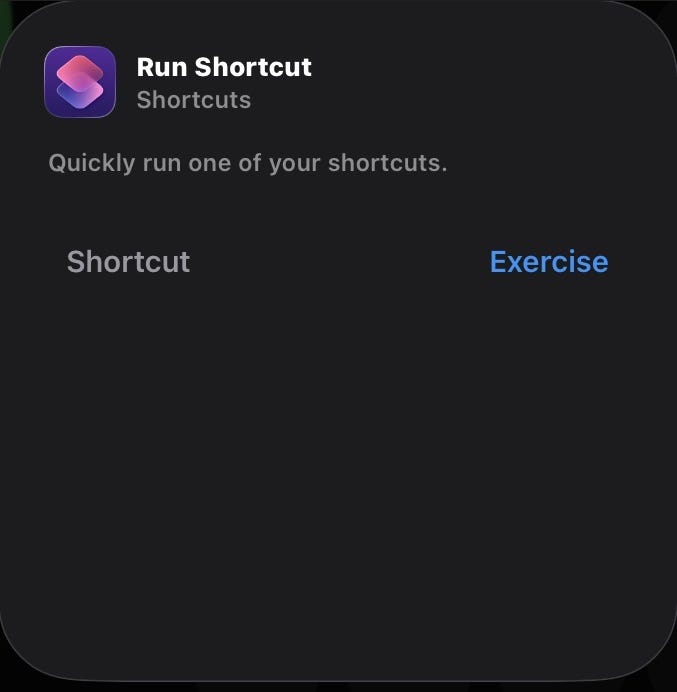
Tap anywhere on the screen to return to the Control Center.
Tap to resize or drag the control to your desired size and location.
Tap anywhere on the Control Center to close the edit function.
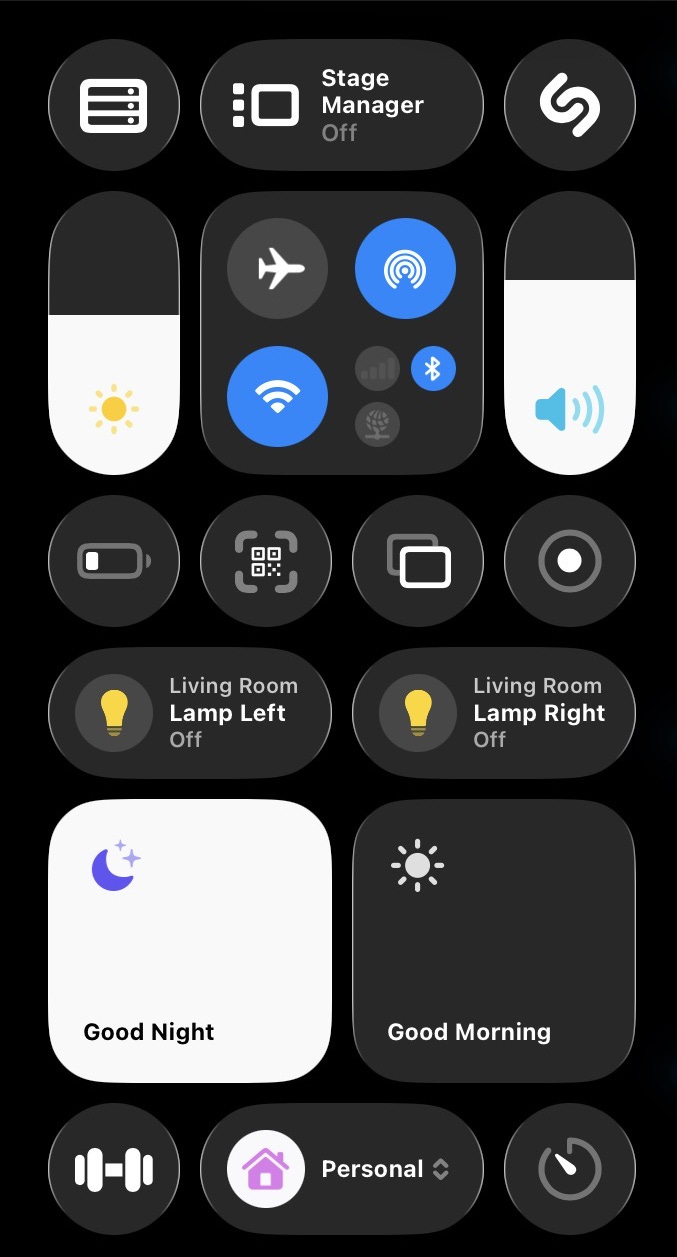
Finally, tap on the shortcut to run it.
You will see something very similar to in the video below.